With the File Manager you can
- Upload files
- Create folders
- Rename, cut, copy, paste and delete folders and files
- Create links to files such as images, documents (Word, pdf etc.) with the option to include a file type icon, file modfied date and file size in the link text.
- Embed some files types in content using an iframe
- Create links to files to be opened in Google™ Docs Viewer or Office Apps Viewer
- Create lightbox style popups for files using JCE MediaBox.
Use of the Google™ Docs Viewer is subject to the Google Terms of Service
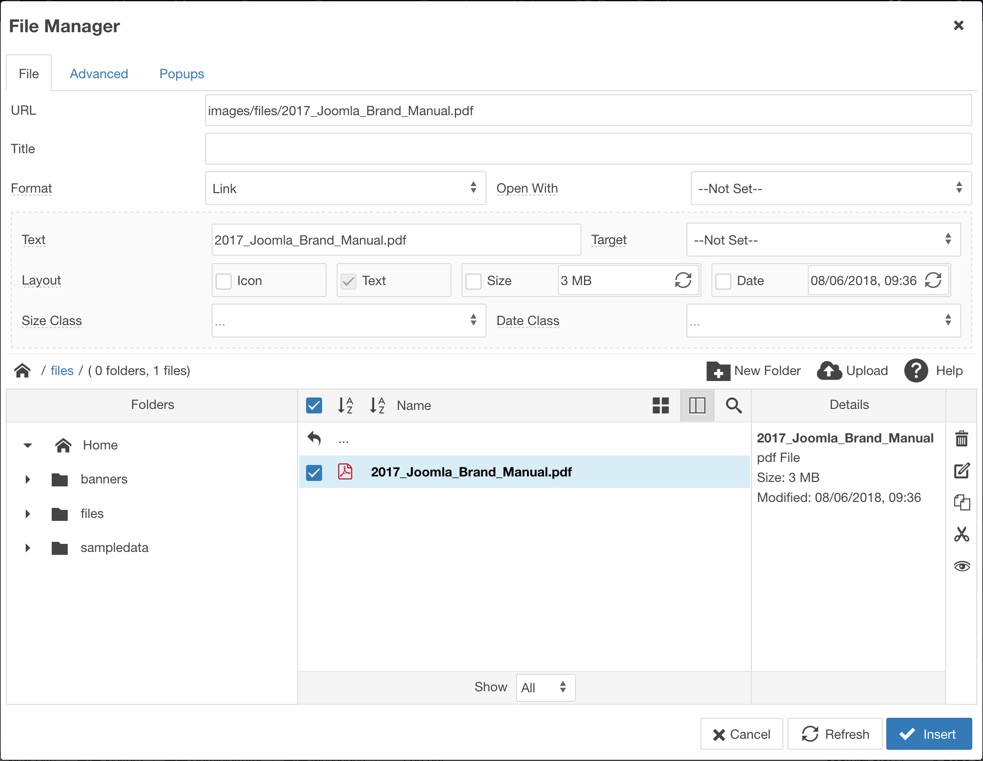
File Manager Interface
The File Manager interface, like all Manager dialogs, consists of two parts, the File Browser section, where files are uploaded, manipulated and selected, and a Properties section where various file options can be set.
The Properties section is contains three tabbed areas - File, Advanced and Popups

File Tab
URL
The URL field represents the file link's href attribute, and is the relative path to the file on the server, or the full URL to an external file.
Title
The link title attribute. Used as a description of the link and will be shown as a tooltip when the mouse is placed over the link.
Format
The format of the file insert - Link inserts the file as a link and Embed embeds the file into content using an iframe.
Open With
An optional method for displaying the link using either Google™ Docs Viewer or Office Apps Viewer
The options area in the grey box will change depending on the Format selected -
Link Format Options

Text
If a text selection was made before opening the plugin this field will be filled by the selection. If the selction was any other element (an image for example), the Options section (including the Text, Layout and Class fields) will not be available. If no selection was made prior to opening the plugin, a text description of the link is required for this field.
Target
Where the link should be opened when clicked. When this option is set to Download, the file will downloaded when clicked (modern browsers only)
Layout
This field contains optional elements that will be included in the link's description and include the file icon, text (required), file size and file modification date. The Size and Date fields are filled when a file is selcted in the File Browser. These values can be edited and the original values restored by clicking the corresponding reload icons
Each of these elements can be re-ordered, thereby affecting the order that they are displayed in the link, by dragging their boxes from left to right / right to left.
Include each element in the link by checking the corresponding checkbox.
Date Class and Size Class
Apply additional classes to the Date and Size span element descriptions in the file link.
The HTML created when inserting a link typically consists of the link/anchor element, the file Icon img element, the file Text, and two span elements each containg the Date and Size values eg:
<a href="/images/files/2017_Joomla_Brand_Manual.pdf">
 <img src="/media/jce/icons/pdf.png" alt="pdf" class="wf_file_icon" />
 <span class="wf_file_text">2017_Joomla_Brand_Manual.pdf</span>
 <span class="wf_file_size" style="margin-left: 5px;">3 MB</span>
 <span class="wf_file_date" style="margin-left: 5px;">12/08/2017, 11:38</span>
</a>
Embed Format Options

The embed options are similar to those available when inserting an image with the Image Manager, or inserting an iframe with IFrames.
Dimensions
The width and height of the iframe, in pixels. If the proportional checkbox is checked, changes to one value will automatically be affected on the other. When inserting a file using the Embed option, Dimensions values must be set.
Alignment
The position of the iframe relative to surrounding text.
Margin
Represents the amount of space (in pixels) between the iframe and surrounding items. If the Equalize box is checked, all margin positions will use the same value.
Advanced Tab
The Advanced tab contains fields for setting standard attributes for the file link or iframe.
 ID
ID
Unique identifier that distinguishes the element from others in the document.
Style
Represents the style attribute. Will be populated with styles set in the File tab (margin, align etc). Additional styles can be added using the style element syntax, eg: text-align:right;vertical-align:middle;
Classes
A list of classes from your Joomla! template that can be applied to the link. Classes can be selected by clicking the drop-down icon, or typed into the field seperated by a space.
Language Direction
Text direction of the element
Target Language Code
Language code of the target url
Language Code
Language code of the element, eg: en-GB
Target Character Encoding
Character encoding of the target url, eg: utf-8
Target MimeType
MIME (Multipurpose Internet Mail Extensions) Type of the target url eg: text/html
Relationship Page to Target
Relationship between the current page and the target url
Relationship Target to Page
Relationship target url and the current page
Tab Index
Tab order of the element
Access Key
Keyboard shortcut to access the element
Inserting a File
A file can be inserted into an article as a link that the visitor can click on to view and access, or for certain file types, embedded with an iframe which can be viewed directly in an article.
Insert a File as a link
A file link can be inserted onto an existing selection - such as text or an image - or inserted at any point in the editor.
If the selection is an element, such as an image, additional File Manager options will not be available for the link. If the selection is text, the Text field will be filled with the selection.
- Select the file in the File Browser window of the File Manager dialog by clicking on its name.
- The URL, Text, Date and Size fields will be filled with the relevant properties of the file. If the link is being applied to a text selection, the option of overwriting this text with the file name will be given.
- Set the Format option to Link.

- If you would like the file to be opened with an external service when clicked, such as Google Docs Viewer or Microsoft Office Apps Viewer, set the required option from the Open With list. Some file document file types - doc, docx, xls, xlsx, ppt, pptx - cannot be opened by the browser and may require an external service to view them. If an external service is not selected, the browser will prompt to download the file.
Use of the Google™ Docs Viewer is subject to the Google Terms of Service
- Select options for the link by checking the Icon, Size and Date boxes and re-order their positions in the link by dragging their boxes from left-to-right / right-to-left.

- Select the Target (where the link will open when clicked) if required. If the file is intended as a download, select the Download option.

- Click the Insert button to create and insert the link.
Insert a file as a Popup Link
If JCE MediaBox, or another supported popup extension is installed, a "lightbox" popup link can be created for the selected file.
- Follow the instructions above for inserting a file as a link.
- Click the Popups tab and select a Popup Type, eg: JCE MediaBox Popups.

- Set any other popup options as required such as the Dimensions (width x height).
- Click Insert.
Embed a File
If content, such as text or an image, is selected in the editor, it will be replaced with the embedded file.
- Select the file in the File Browser window of the File Manager dialog by clicking on its name.
- Set the Format option to Iframe.

- Some file document file types - doc, docx, xls, xlsx, ppt, pptx - cannot be opened by the browser and may require an external service to view them. If you would like the file to be opened with an external service, such as Google Docs Viewer or Microsoft Office Apps Viewer, set the required option from the Open With list. If an external service is not selected, the browser may prompt to download the file, depending on the file type.
Use of the Google™ Docs Viewer is subject to the Google Terms of Service
- When the Iframe option is selected, options for the iframe display will be shown, including the Dimensions (width and height), Alignment and Margin. When embedding a file, the Dimensions should always be set in pixels. If no dimensions are set, the default values of 640px x 480px will be used

- Click the Insert button to embed the file.